Skip to content
Truman State University
  • Admission
  • Academics
  • Alumni
  • About
  • Student Life
  • News & Events
  • Truview Login
  • Athletics
  • Directory
  • ITS Home
  • Get Help
    • Get Help
    • Technical Phone Support
    • Student Computing (How To)
    • How do I?
    • IT Service Center Laptop Checkout
    • Documentation
    • Training & Tutorial
    • Security Awareness
    • Phone Services
  • Forms
  • Purchasing Technology
  • Software & Labs
    • Software and Labs
    • Computer Lab Map
  • Learning Technologies
  • Policies & Procedures
  • Enterprise Systems
    • Enterprise Systems
    • Student Directory Data Request
  • About ITS
    • About ITS
    • IT Governance
    • ITS Annual Reports
    • Planning
  • Home
  • How to Block a Sender in Microsoft Outlook

How to Block a Sender in Microsoft Outlook

How to Block a Sender in Microsoft Outlook

You can block unwanted email senders in Outlook to prevent future messages from appearing in your Inbox. Messages from blocked senders are automatically moved to your Junk Email folder.

Option 1: Block a sender in Outlook on the web

  1. Sign in to Outlook on the Web.
  2. Locate an email from the sender you want to block.
  3. Right-click the message or open it.
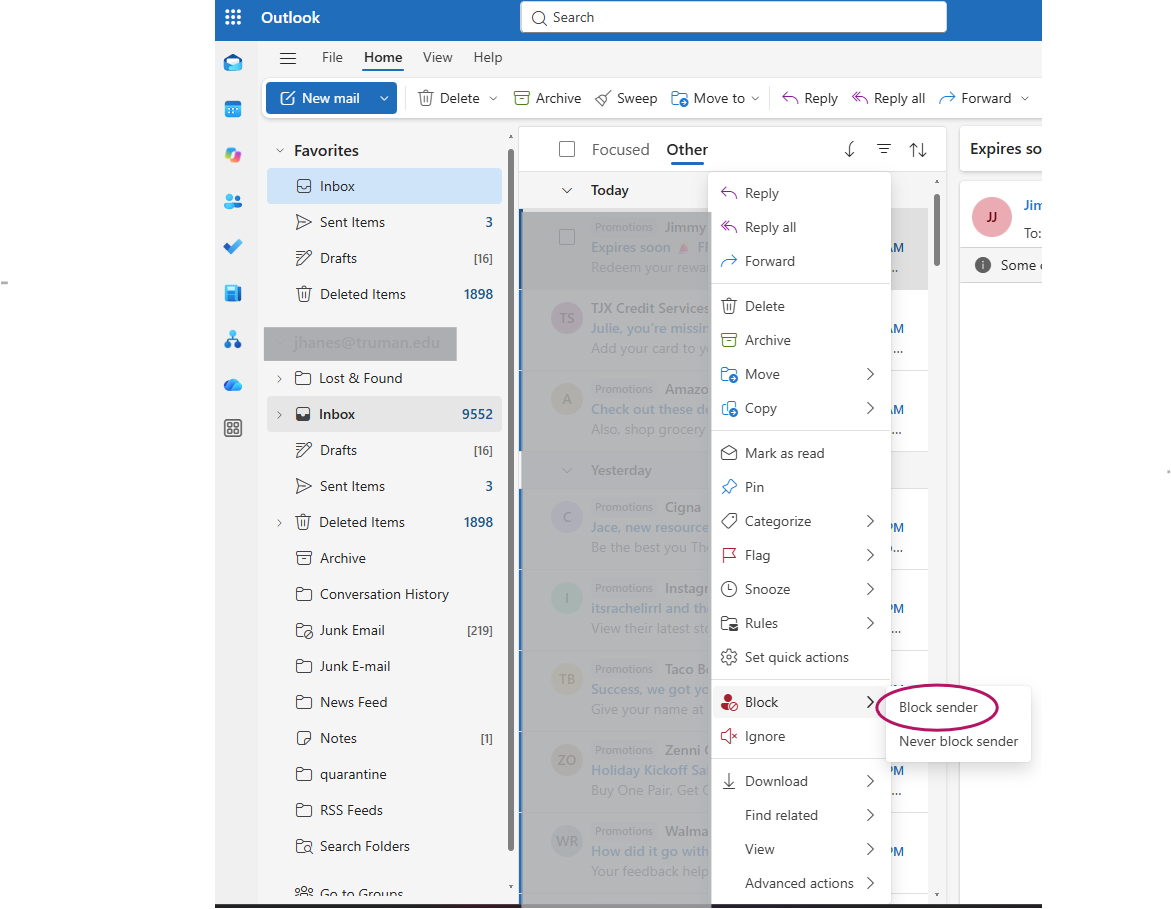
  4. Select Block or Block sender (the wording may vary depending on your Outlook version).
  5. Confirm the action if prompted.

Important: Blocking a sender does not prevent the sender from emailing you. It tells Outlook to move their messages to Junk Email instead of your Inbox.


Option 2: Block a sender in the new Outlook desktop application

  1. Open Outlook.
  2. Find an email from the sender you want to block.
  3. Right-click the email.
  4. Select Block or the available sender-blocking option.
  5. Confirm if prompted.


Option 3: Block a sender in classic Outlook

  1. Open Outlook.
  2. Find an email from the sender you want to block.
  3. Right-click the message.
  4. Select Junk.
  5. Select Block Sender.
  6. Select OK to confirm.


Option 4: Manage your blocked senders list

You can also manually add an email address or an entire domain without having an existing message.

For Outlook on the web and new Outlook:

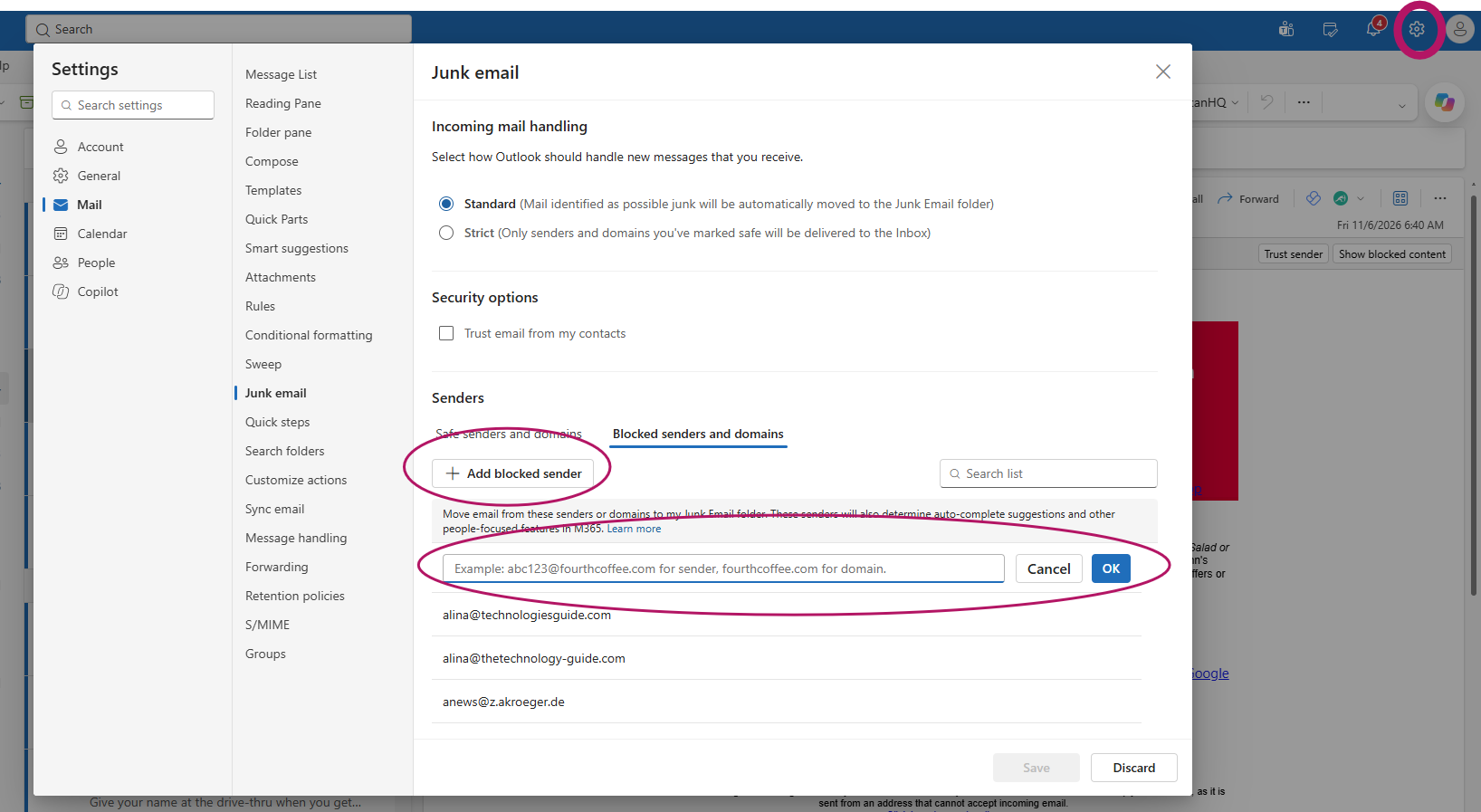
  1. Select the Settings gear in the upper-right corner.
  2. Select Mail.
  3. Select Junk email.
  4. Find Blocked senders and domains.
  5. Select Add.
  6. Enter the email address or domain you want to block.
  7. Select Save.

To unblock someone, return to the same settings page, select the sender’s address, and choose Remove.

Related Documents:

  • How to Block a Sender in Microsoft Outlook
  • Guide to Storing University Files
  • Classroom and Other Infrastructure Updates for Summer 2023
  • Progress on Microsoft Office Upgrade to MS365
  • Email Updates
  • Enhanced Website Analytics
  • New Website Search Tools
  • Teaching Improvements and D2L Brightspace
  • Zoom Recording Deletions
  • Technology Improvements for Spring 2023
  • Classroom Improvements and Course Support
  • Changes to Google Storage
  • New Classroom Technologies!
Truman Logo
Truman State University
100 E. Normal Avenue
Kirksville, MO 63501 USA
(660) 785-4000
©2026 Truman State University
   Contact Us
Give To Truman
  • Get to Know Truman
    • Admission
    • Academics
    • Alumni
    • Student Life
    • About Truman
  • Explore
    • News & Events
    • Athletics
    • Directory
    • Parents & Families
    • Employment
    • TruView
    • Maps & Directions
  • Policy and Safety
    • Policies
    • Title IX/Statement on Non-Discrimination
    • Disclosures
    • Privacy Policy
    • Accessibility
    • Emergency Information

Truman State University is an equal opportunity and affirmative action employer.

Back to Top