How to Block a Sender in Microsoft Outlook
You can block unwanted email senders in Outlook to prevent future messages from appearing in your Inbox. Messages from blocked senders are automatically moved to your Junk Email folder.
Option 1: Block a sender in Outlook on the web
- Sign in to Outlook Web.
- Locate an email from the sender you want to block.
- Right-click the message or open it.
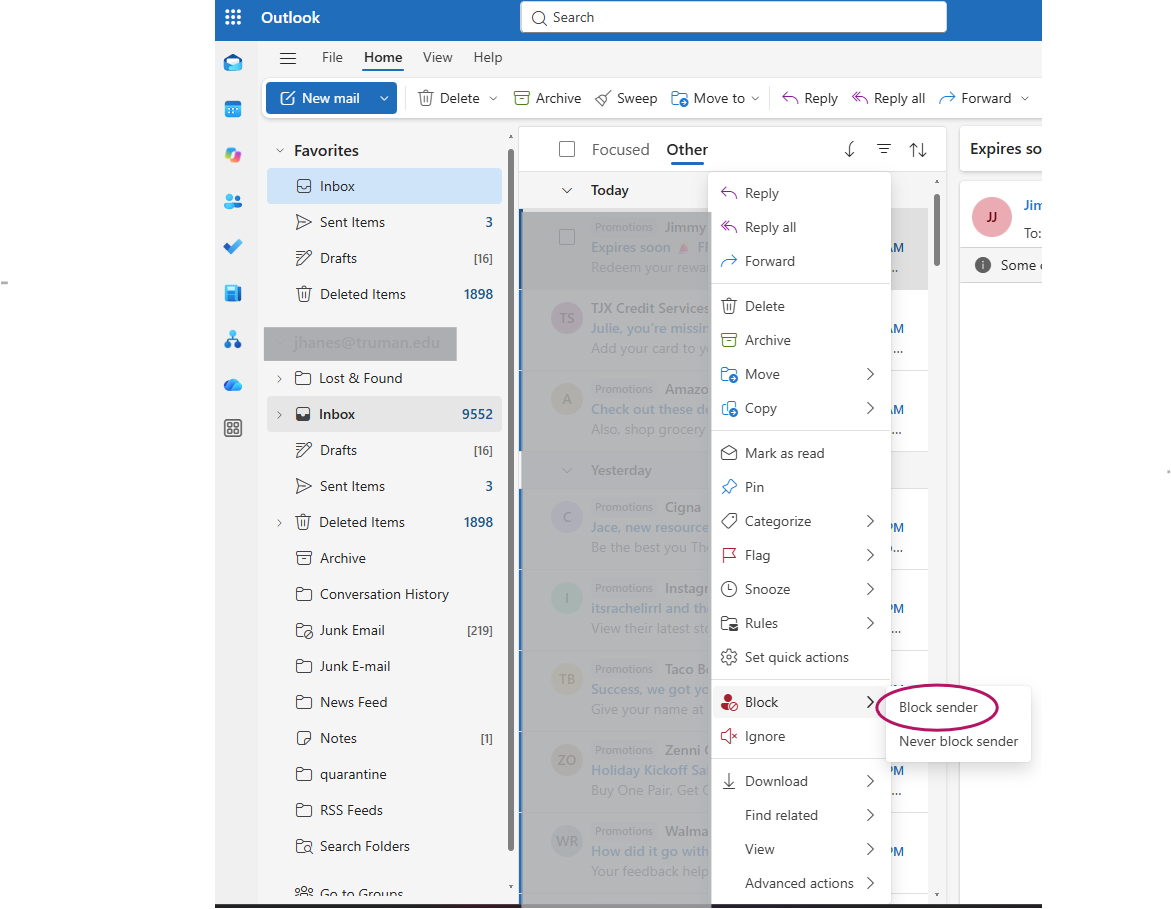
- Select Block or Block sender (the wording may vary depending on your Outlook version).
- Confirm the action if prompted.
Important: Blocking a sender does not prevent the sender from emailing you. It tells Outlook to move their messages to Junk Email instead of your Inbox.
Option 2: Block a sender in the new Outlook desktop application
- Open Outlook.
- Find an email from the sender you want to block.
- Right-click the email.
- Select Block or the available sender-blocking option.
- Confirm if prompted.
Option 3: Block a sender in classic Outlook
- Open Outlook.
- Find an email from the sender you want to block.
- Right-click the message.
- Select Junk.
- Select Block Sender.
- Select OK to confirm.
Option 4: Manage your blocked senders list
You can also manually add an email address or an entire domain without having an existing message.
For Outlook on the web and new Outlook:
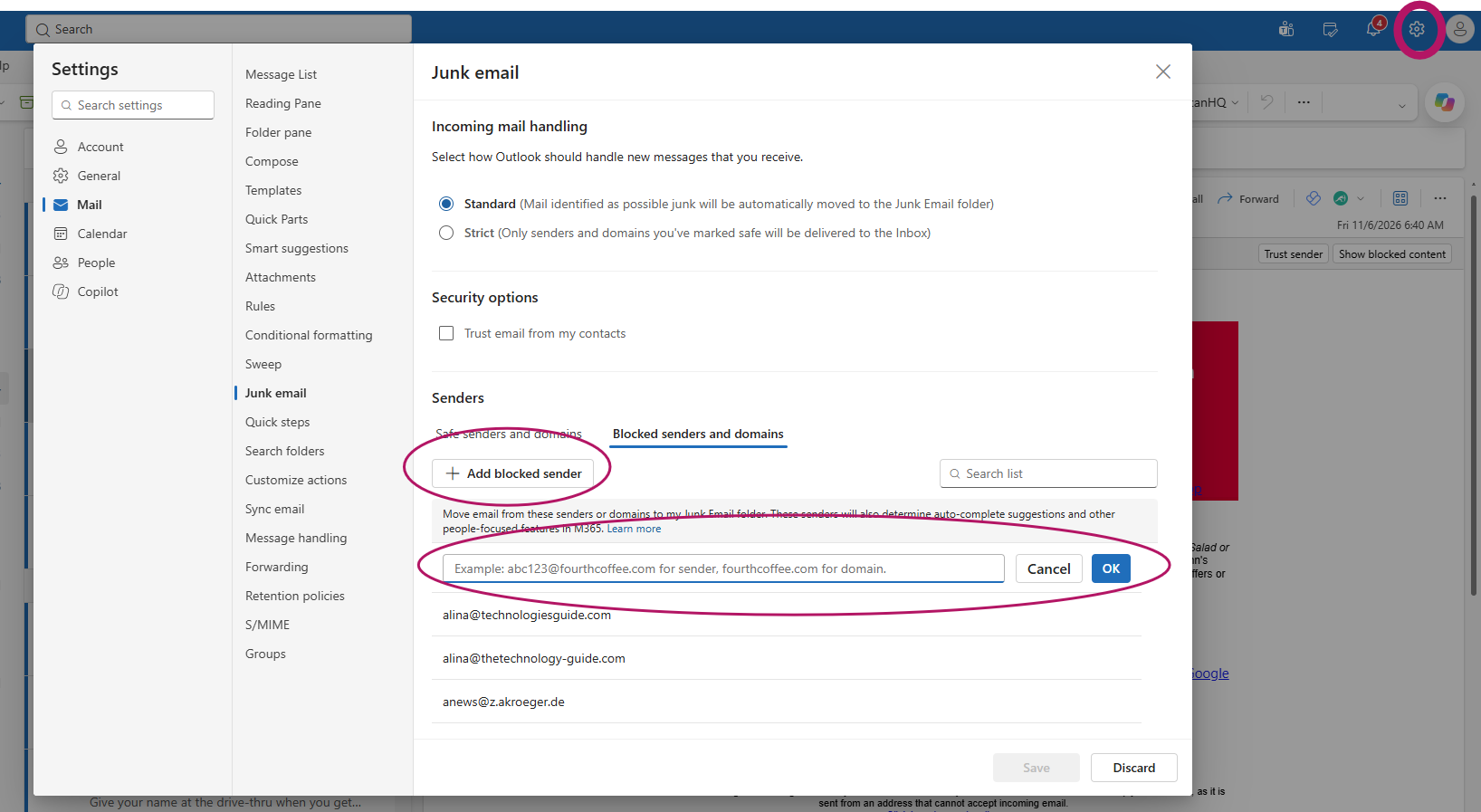
- Select the Settings gear in the upper-right corner.
- Select Mail.
- Select Junk email.
- Find Blocked senders and domains.
- Select Add.
- Enter the email address or domain you want to block.
- Select Save.
To unblock someone, return to the same settings page, select the sender’s address, and choose Remove.