How to Access a Shared Mailbox
Understanding Shared Mailboxes
A shared mailbox allows multiple authorized users to access and manage email sent to a common email address.
Examples include departmental mailboxes, office mailboxes, and student organizational mailboxes.
Important Information
- Shared mailboxes do not have individual owners in the traditional sense. Users are granted delegated access.
- A shared mailbox does not require a separate password for users.
- Users access the shared mailbox through their own Truman email accounts.
- ITS must grant the appropriate permissions before a user can access a shared mailbox.
Accessing a Shared Mailbox
After ITS grants you access, the shared mailbox may automatically appear in Outlook.
Using Microsoft 365 Online (Outlook on the web):
- Go to Outlook on the Web and sign in with your credentials.
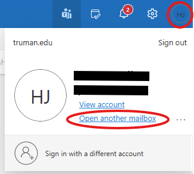
- Once logged in click your profile icon in the top-right corner.
- Click “Open another mailbox” and enter email@truman.edu.
- The mailbox will open in a new browser tab.
Using Outlook Desktop (Outlook 365):
- Log into email with your credentials.
- The shared mailbox should automatically appear in the left-hand navigation pane, typically near the bottom of your folder list. (Can take up to an hour to appear)
Using Outlook Mobile (Phone App):
- Open the Outlook app.
- Select “Add a shared mailbox.”
- Enter email@truman.edu.
Sending Email from a Shared Mailbox
If you have permission to send messages from a shared mailbox, you can select its address in the From field.
Instructions
- Open Outlook.
- Select New mail.
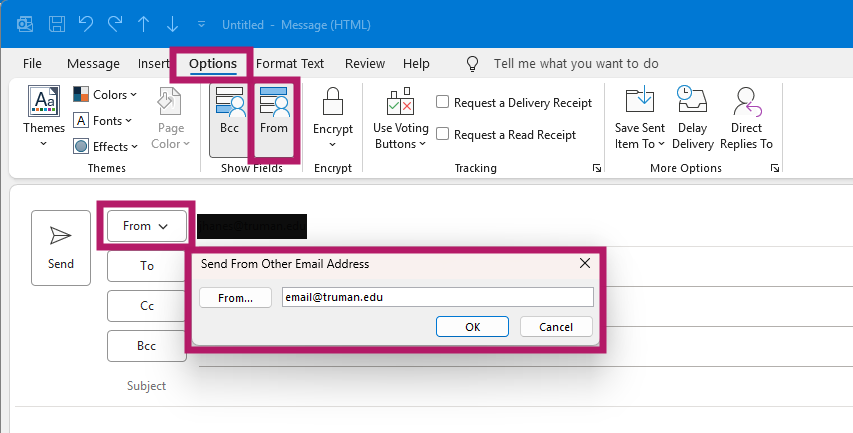
- If the From field is not visible, select Options and enable Show From or select the From option.
- Select the From field.
- Choose the shared mailbox address.
- If it does not appear, select Other email address and enter the shared mailbox address.
- Compose your message.
- Select Send.