Connecting to the Secure Wireless Network with an iPhone, iPad, or iPod Touch
Open the Settings app, then select Wi-Fi.
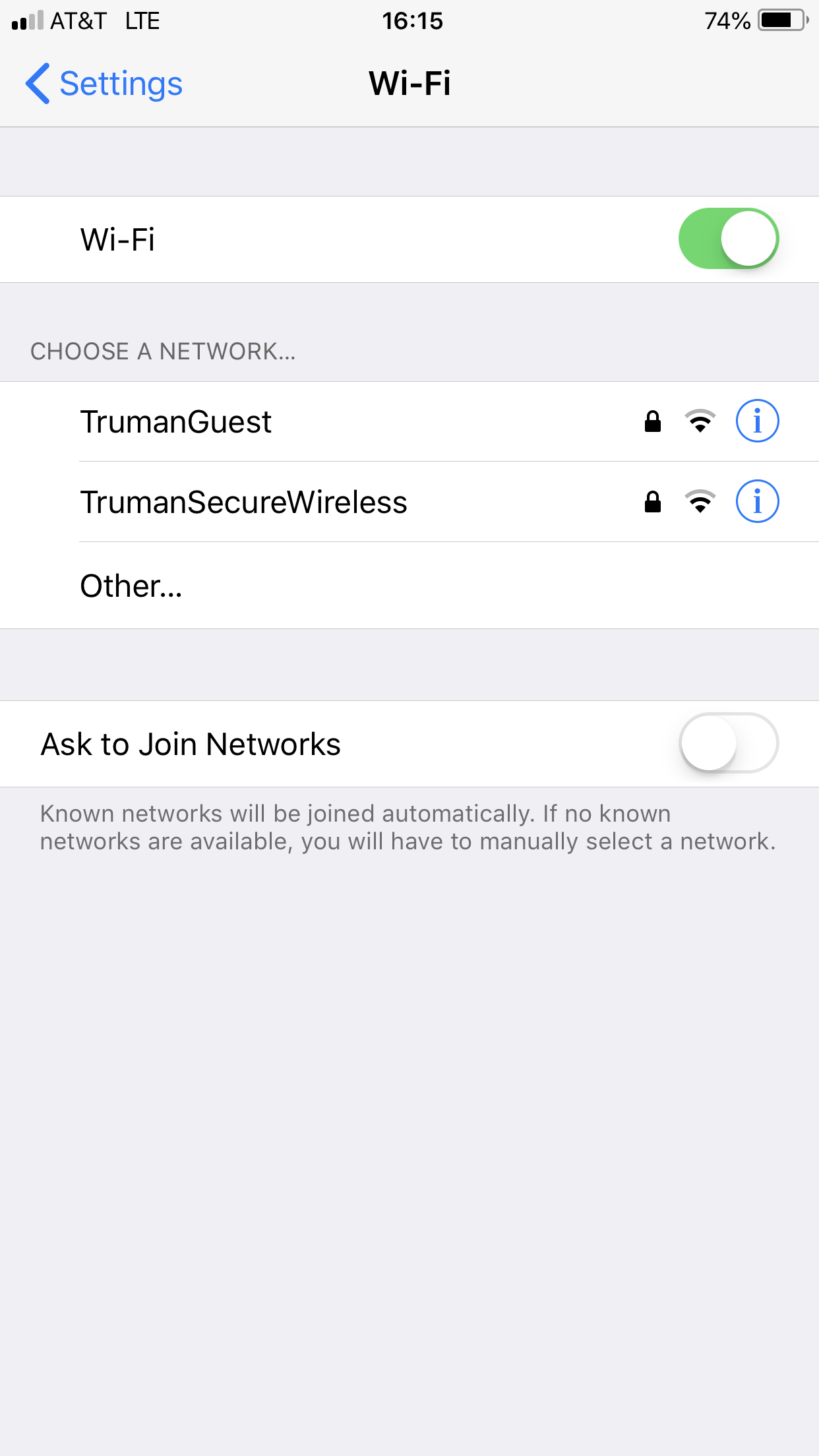
(Make sure the Wi-Fi switch is turned on.)
Select TrumanSecureWireless.
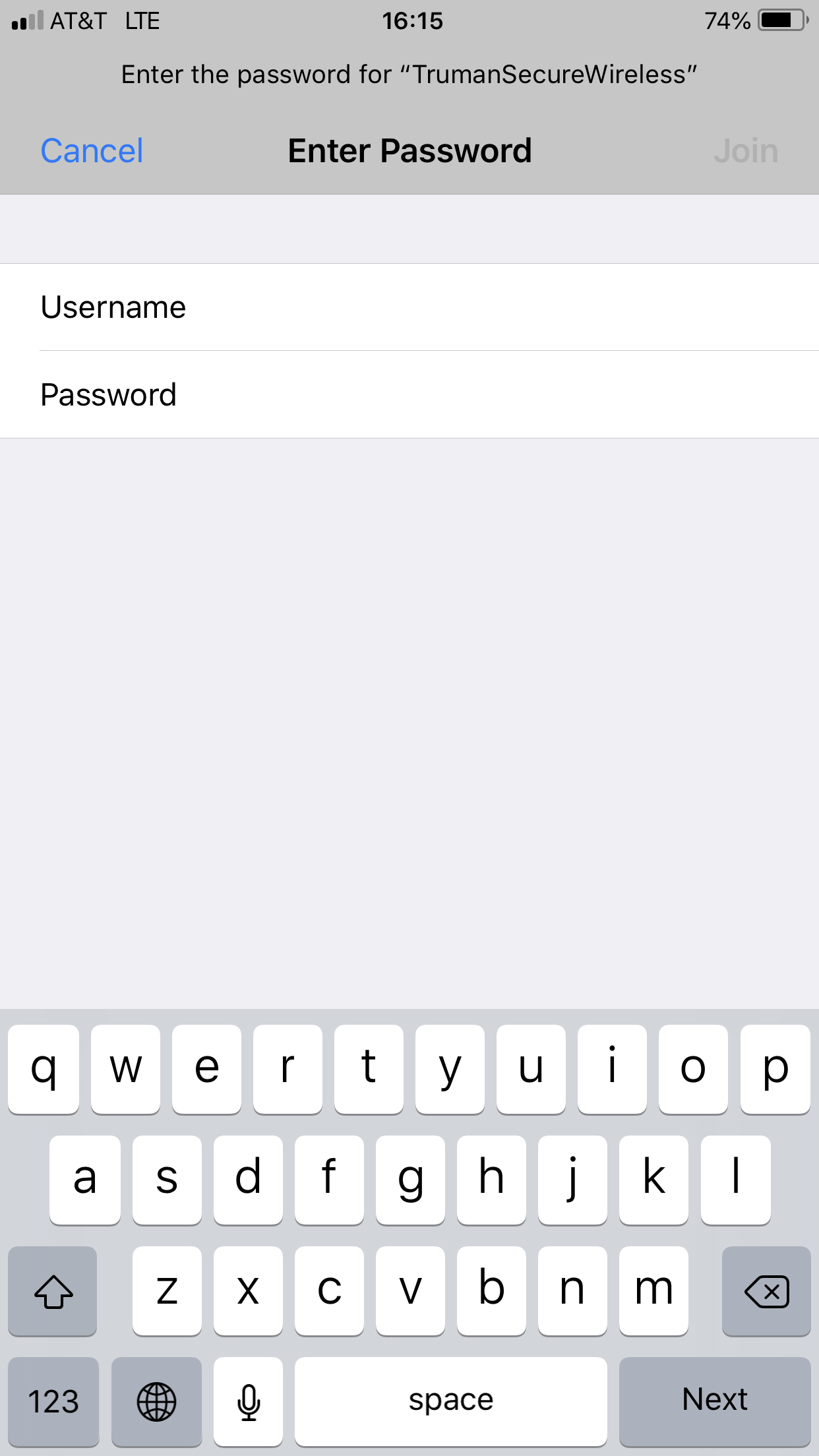
Enter your username and password and select Join.
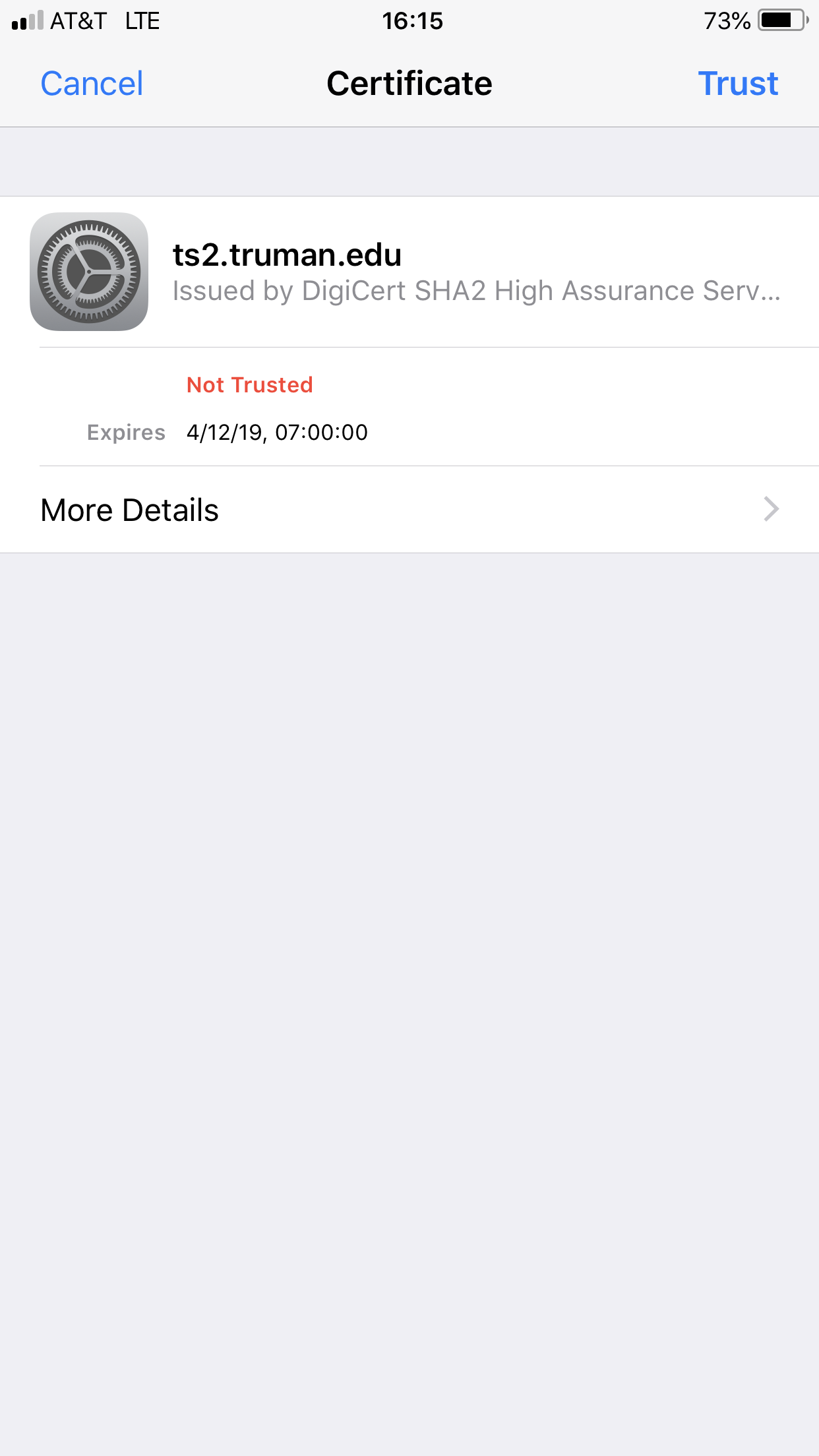
When prompted, select Trust at the Certificate window.
You should now be connected to the wireless network and may open a web browser to verify your connection is working.
If you run into problems, try verifying that your username and password are correct. If you enter three incorrect passwords, your account will be locked out for a period of 15 minutes. After the 15 minutes, you can try again.
If after a correct password and Truman username have been entered, all the above steps have been completed, and you have waited roughly three minutes to allow for connection and it still has issues, select the TrumanSecureWireless and remove it from network list (found in the wireless settings as seen in the picture above). Then try repeating the steps above.