Connecting to the Secure Wireless Network with an Android Phone or Tablet
Connecting to the Secure Wireless Network with an Android Phone or Tablet
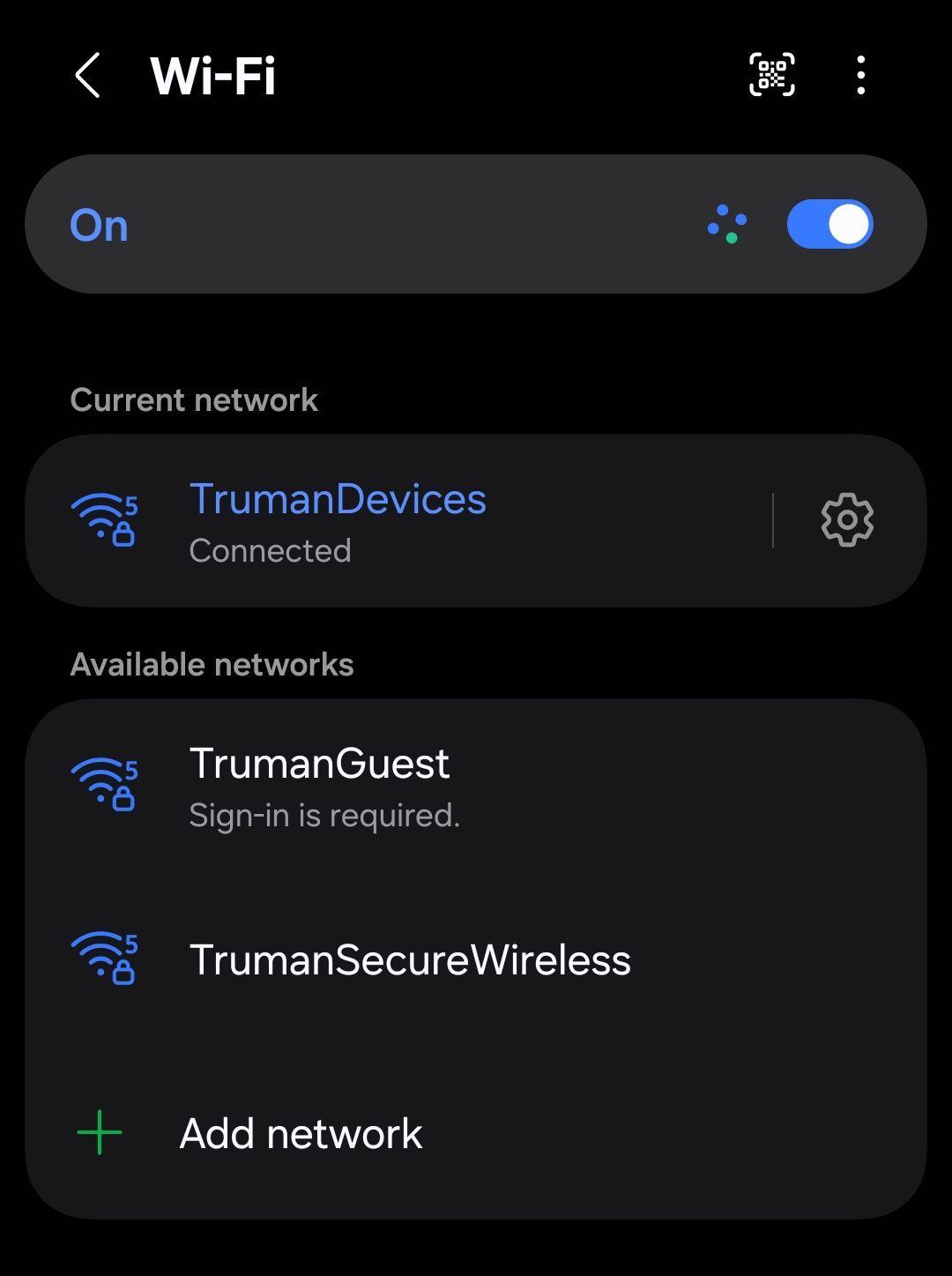
First, go to your Wifi Settings. The steps may vary depending on your device. You can access them by going to Settings > Connections > Wi-Fi. Alternatively, open the Quick Settings panel from your home screen, press and hold the Wi-Fi icon, and then select More Settings. Once open, select the wireless connection called “TrumanSecureWireless”.
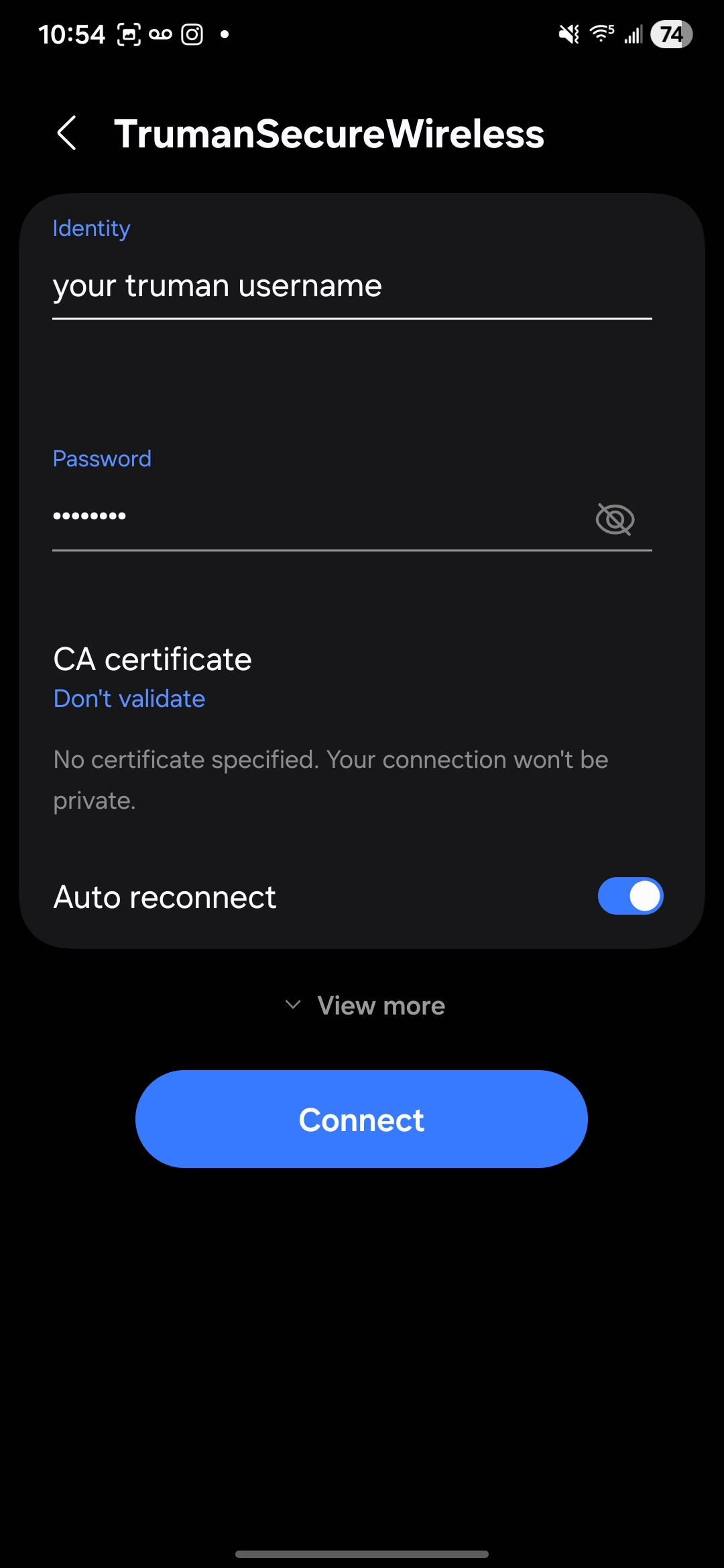
Next, type or select the following from the drop-down menus:
Under “Identity”, type your Truman network username. (Example “rmuffley”.)
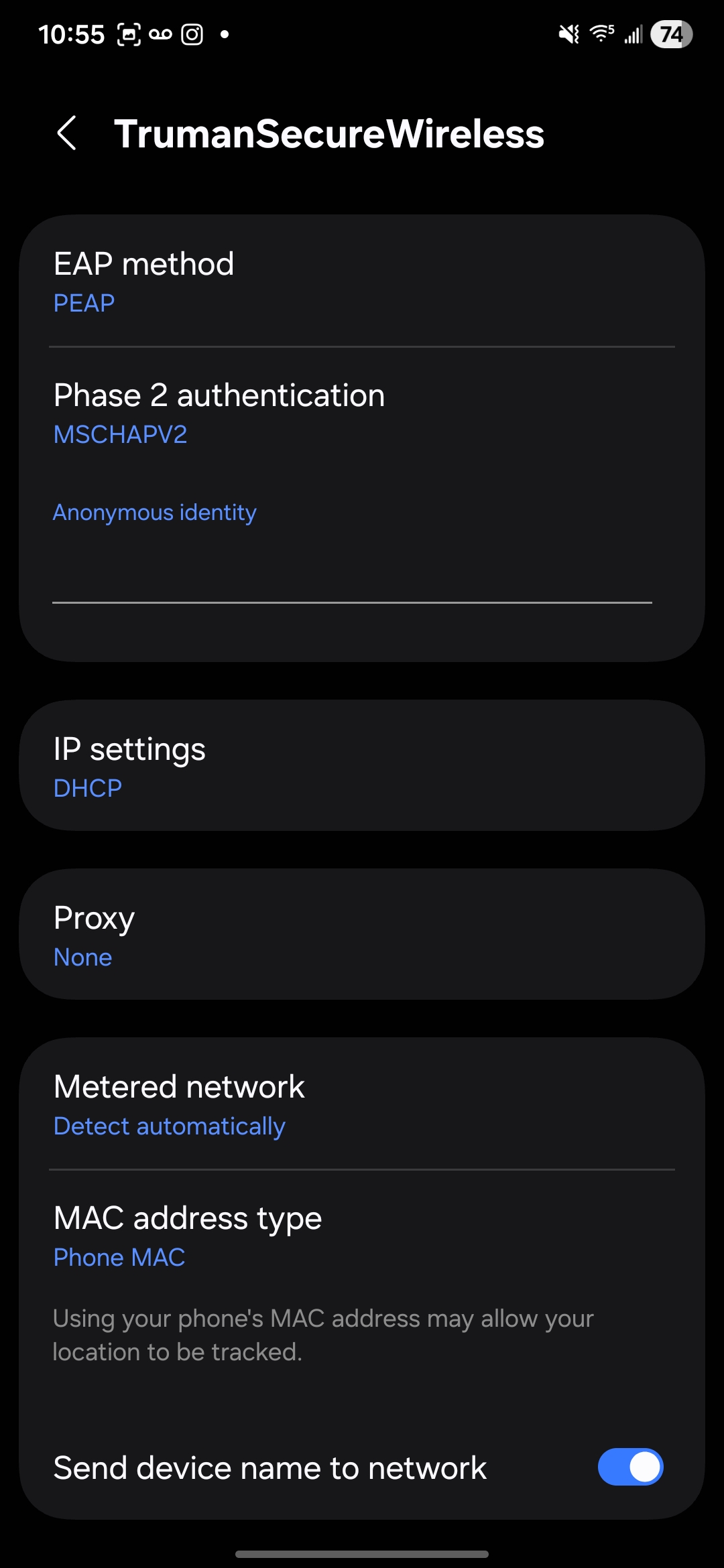
Leave “Anonymous Identity” blank.
Under “Password”, type your Truman network password.
If the options below are not listed, click on the advanced option or view more settings
Under “EAP method”, select “PEAP”
Under ”Phase 2 authentication”, select “MSCHAPV2”.
Under “CA certificate”, select “Unspecified”. (It could also be “None”, or “No Certificate”.)
Under Device Mac, select “Use Device Mac.”
Once done, click “Connect”, and your device will now be connected to the TrumanSecureWireless.