Connecting to the Secure Wireless Network in Mac OS
It is recommended that all available software updates are installed before connecting to the wireless network. To determine this, plug into the wired network and select Software Updates from the Apple icon in the menu bar.
Versions of Mac OS X before 10.9 (Mavericks) do not include the software required to connect to a secure wireless network. Issues in versions below Mac OS 14 are not supported.
Please note: IT Services only troubleshoots wireless connection issues on macOS versions 14 through 26. Other versions are not supported.
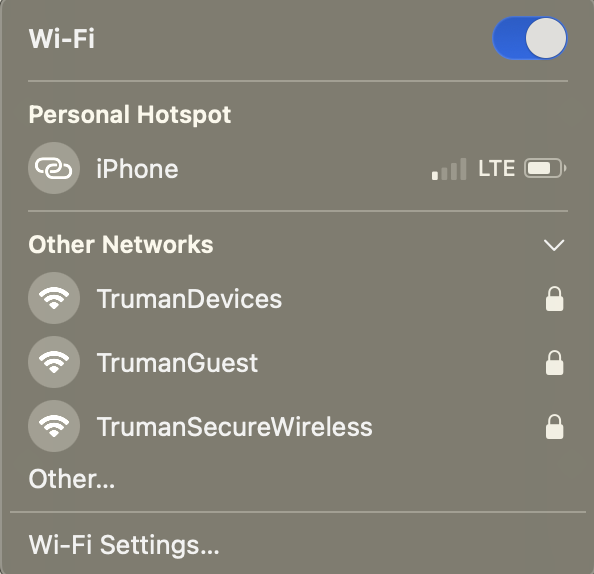
- Click on the Wi-Fi (Airport) Status menu on the menu bar and then select TrumanSecureWireless.
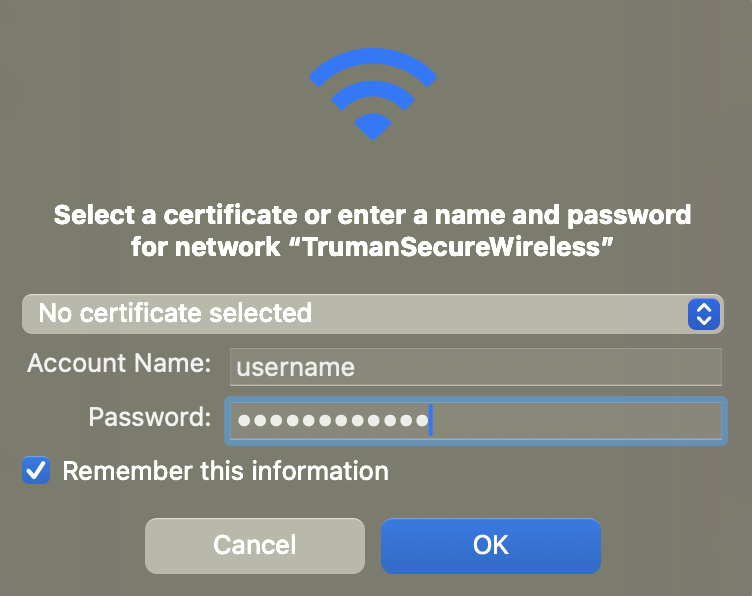
- Enter your network username and password in this box. Leave the Certificate as No certificate selected and verify the Remember this network box is checked. Click Join.
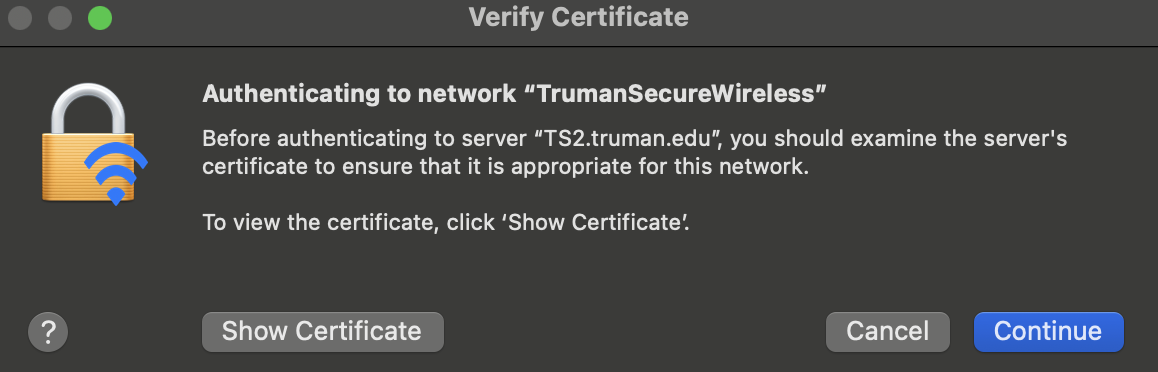
- You may be asked to Verify Certificate. If given the option, Click Continue.
- You might be asked to verify these settings. Enter your computer username and password. Click Update Settings.
- You should now be connected to TrumanSecureWireless. If the connection fails after verifying the certificate, select the Wi-Fi Status menu and select Turn Wi-Fi Off and then Turn Wi-Fi On.
If you are still having difficulties connecting after following these instructions, contact the IT Service Center at (660) 785-4544 or visit the IT Service Center at Pickler Memorial Library, room 203.