Installing M365 (formerly known as MS Office) – the Desktop Version
While you can certainly use the web-based of version to access M365 products indefinitely, some users may prefer a desktop experience. Features such as mail merge in Outlook, the use of the Access database application, and more are only possible when one installs M365 on the desktop.
For most university-owned and managed, Windows-based computers, you can install the M365 suite (which includes the email client Outlook) yourself by using the Ivanti Computer Management tool even if you don’t have “administrative access” to your computer.
*Please Note* THIS PROCESS WILL UNINSTALL ALL EARLIER VERSIONS OF MS OFFICE FROM YOUR COMPUTER!
This process will NOT remove .PST or Archive folders if you have those (These are Outlook email special folders that some people use to manage large in-boxes)
Instructions – Installing MS365 through Kaseya
- On your Windows computer, click the “Windows” button on your taskbar and Search for Agent Browser.
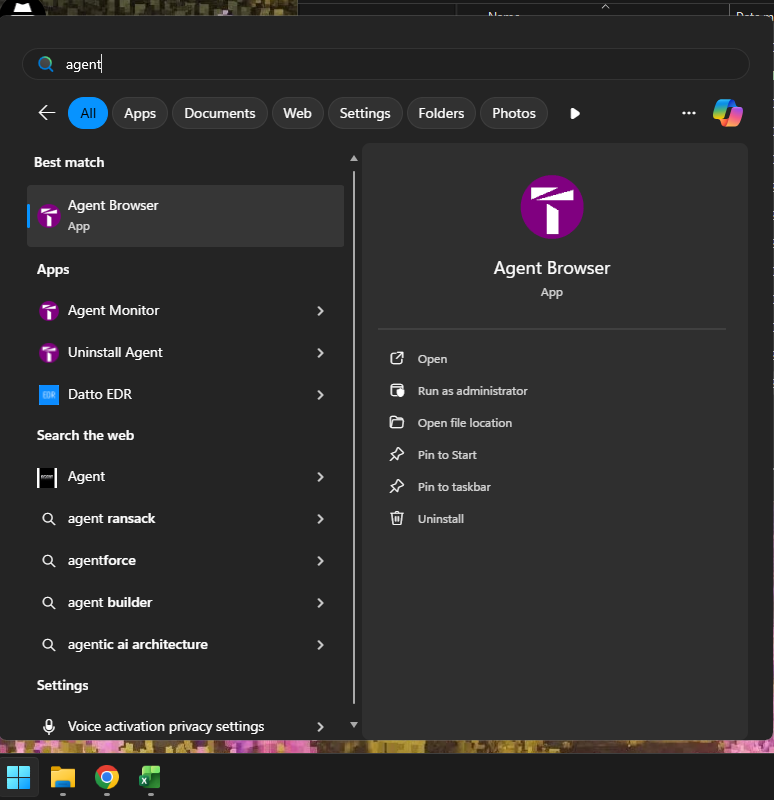
- Then Click on Agent Browser
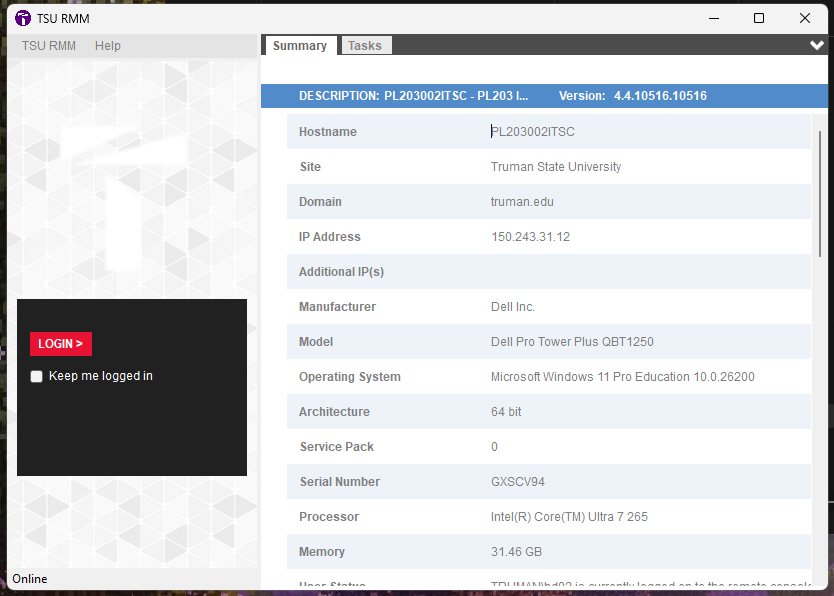
- Switch to Tasks Tab
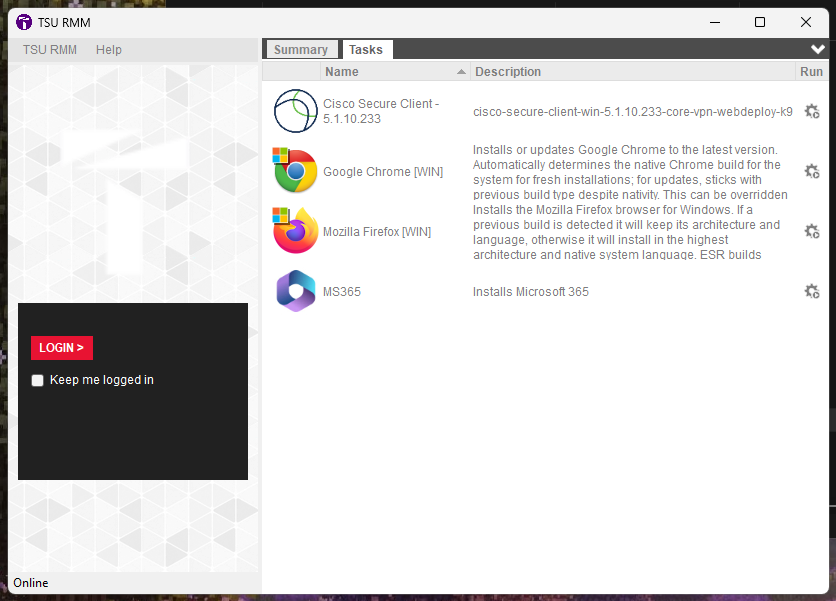
- Click the gear icon next to MS365 to initiate the setup process. This process will uninstall old Office versions and install the M365 Suite (including Outlook).
- When the progress bar disappears, the process is complete!
Tips
You may wish to right-click and pin your favorite applications, such as Outlook, to the Start menu. You can also click and drag your favorite applications to the task bar to pin them there.

Setting Up Outlook
To complete the Outlook set-up, click for additional steps.
Need Help?
- You don’t have Agent Browser
- MS365 is not listed in the Agent Browser
- The installation fails
- You want to discuss options, concerns, or get assistance with the process
Contact the IT Service Center/Help Desk (PML203 / 660-785-4544 / Web Portal)